Google Business Profile Posts Not Showing? 7 Causes and Fixes
Google Business Profile posts not showing? Check the post's status, then these 7 causes, with Google's own wording and data from 2,426 connected listings.
ReplyOnTheFly Team
Content Team

On this page12 sections
- Start With the Status: Live, Pending, or Not Approved
- Cause 1: The Post Is Live, and You Looked in the Wrong Place
- Cause 2: The Post Is Pending Because It Is Still Processing
- Cause 3: The Post Is Pending Because Your Profile Is Unverified
- Cause 4: You Posted to a Listing Customers Can't See
- Cause 5: The Post Is Not Approved
- Cause 6: The Post Was Showing, Then Aged Out
- Cause 7: Google Chose a Different Post for the Top Spot
- The Five-Minute Check, in Order
- How to Stop Guessing Next Time
- The Takeaway
- Frequently Asked Questions
You wrote the post, picked the photo, and hit Post. Then you searched for your own business and it wasn't there.
When Google Business Profile posts are not showing, the cause is usually not the words you wrote. It is the post's status, the place you looked, the profile behind the post, or the calendar.
Quick answer
If your Google Business Profile posts are not showing, open Posts in your Business Profile and read the status beside the post. Live means it is public, so look in the Updates tab on a phone or the From the owner section on a computer. Pending means it is still processing or your profile is unverified. Not approved means it broke a content rule. A post that showed last week and is gone today has simply aged out of the top spot.
Below are the seven causes in the order worth checking, with Google's own wording quoted and numbers from the listings connected to ReplyOnTheFly.
Start With the Status: Live, Pending, or Not Approved
Every post carries a status, and it settles most of the mystery in ten seconds. Go to your Business Profile, select Posts, and read the label next to the post.
Google's help page for posts defines all three:
| Status | What Google says | What it means for you |
|---|---|---|
| Live | "The post is public and shows on Search and Maps." | The post is fine. See causes 1, 6, and 7. |
| Pending | "The post doesn't show on Search or Maps. It's either in the upload stage, the processing stage, or your profile is unverified." | Wait a day, then check the profile. See causes 2, 3, and 4. |
| Not approved | "The post doesn't show on Search or Maps. The question mark next to the status indicates which content policy the post violates." | Fix the post. See cause 5. |
Notice what the Pending line does. It puts three different problems under one label, and only one of them fixes itself.

Cause 1: The Post Is Live, and You Looked in the Wrong Place
Check this one first, because nothing is broken.
Google says customers can find posts in three places:
- "The 'Updates' or 'Overview' tabs of the Business Profile on mobile on Search and Maps."
- "The 'From the owner' section of the Business Profile on your computer on Search and Maps."
- "Featured posts that are added directly to your Business Profile on mobile."
So a post that sits near the top of your profile on a phone can be well down the panel on a desktop.
The fix: search your business name and city on your phone, open the profile, and tap Updates. Then check a computer and scroll to From the owner.
Do it signed out. Google's own tip is that "to find how others view your profile, you can browse privately in Google Chrome or in Google Maps." Signed in as the owner, you see the management view, which is not what a customer sees.

Cause 2: The Post Is Pending Because It Is Still Processing
Two of Google's three reasons for Pending are "the upload stage" and "the processing stage." Google's developer documentation describes the same state more bluntly: "This post is being processed and is not appearing in search results."
Google does not publish how long that takes for a post. For media, its photo guidelines say it can take up to 24 to 48 hours before photos and videos show on a profile. A post with a large photo or a video goes through that same pipeline.
A scheduled post is a related case. If you turned on "Schedule this post" and picked a date, the post is not public until that date arrives.
Sometimes the delay is on Google's side entirely. From March 3 to November 17, 2026, ReplyOnTheFly sent 7,115 posts to Google for 223 businesses. Exactly 100 did not go through, and 71 of those were Google answering "Internal error encountered." That is a server error, not a problem with the post.
The fix: give a Pending post 48 hours. Don't delete it and post again in the first hour, because you will only restart the clock. If it is still Pending on day three, the post is not the problem. Move to cause 3.
Cause 3: The Post Is Pending Because Your Profile Is Unverified
This is the third reason on Google's Pending line, and waiting will never fix it.
An unverified profile can look finished. You can add hours, upload photos, and write posts. Customers see none of it. Google's photo guidelines put it in one sentence: "Your photos and videos show up on Google only after you verify your Business Profile."
It is more common than you'd think. On November 18, 2026, we looked at the 2,426 Google listings connected to ReplyOnTheFly. Google reported 164 of them (7%) as unverified or still waiting on verification.
The fix: open your Business Profile and look for a Get verified button. If it is there, every post you write will sit at Pending until you finish. Google says "verification reviews take up to 5 business days," and that postcard codes mostly arrive within 14 days.
The button can also come back on a profile you verified years ago. Google says that when it reappears, "it means Google couldn't completely verify your business." Our guide to Google Business Profile verification walks through each method.
Cause 4: You Posted to a Listing Customers Can't See
Sometimes the post is fine and the profile is verified, but it is the wrong profile.
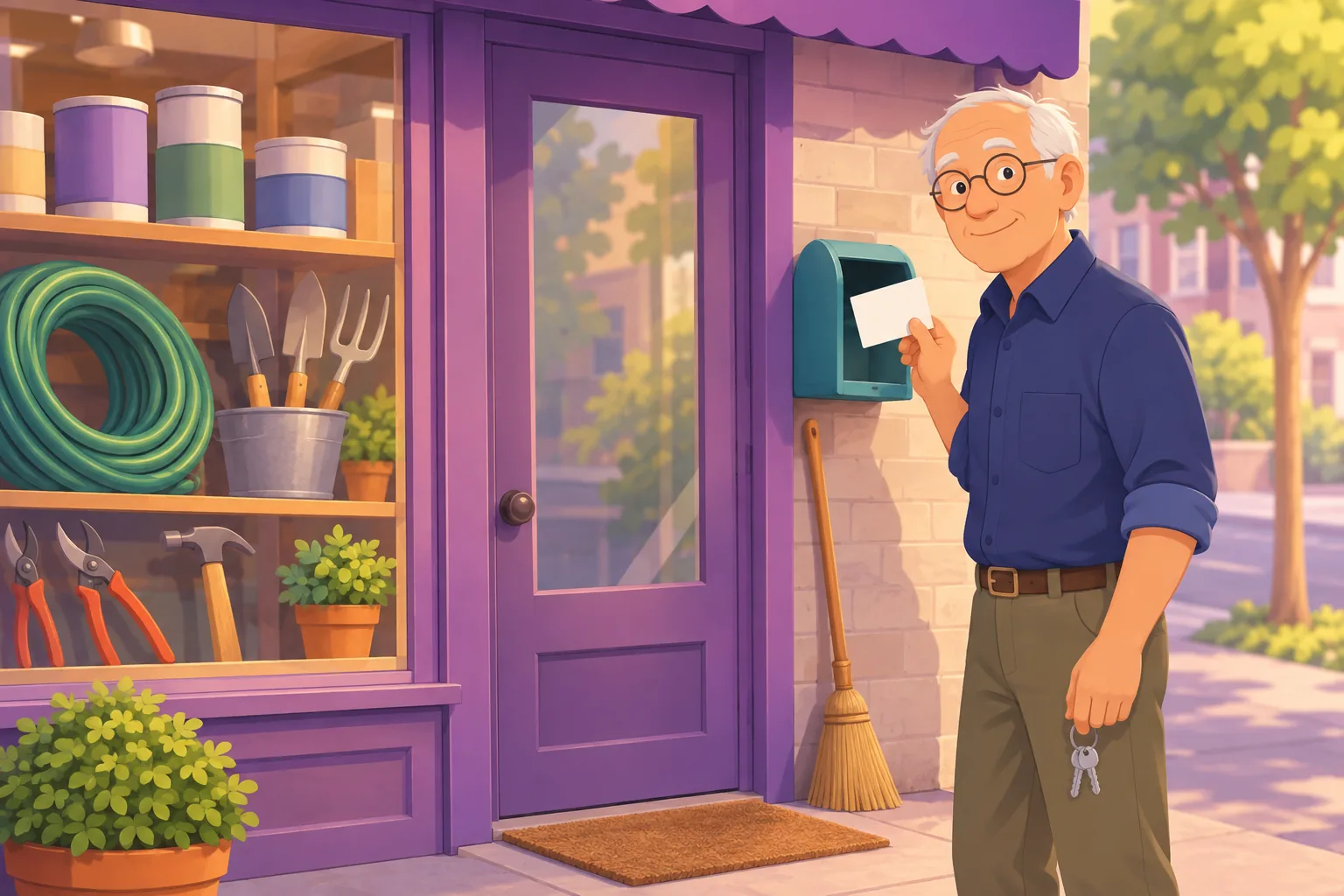
Many businesses have more than one listing in their Google account. There's the real one, plus an old address, a duplicate someone created in 2019, or a listing Google has suspended. A post published to any of those goes nowhere.
Google's developer documentation has a flag for this. It records whether a listing "is in good standing and has control over the business on Google." Of the 2,426 connected listings we checked, that flag was off far more often than owners expect:
| What Google reported | Listings | Share |
|---|---|---|
| Unverified or waiting on verification | 164 | 7% |
| Flagged as a duplicate of another listing | 160 | 7% |
| No longer exists on Google | 87 | 4% |
| Suspended or disabled | 82 | 3% |
That is 493 listings, one in five, where a post cannot reach a customer.
The pattern behind the number is the useful part. Among the 203 owners with a single listing, only 5 (2%) had one that was unverified, suspended, or a duplicate. Among the 201 owners with more than one listing, 86 (43%) had at least one.
So if your account shows more than one listing for the business, check which one you posted to before anything else.
The fix: open the profile you posted from and compare its address and phone number with the listing customers find when they search. If they differ, you posted to the wrong one.
A suspended profile needs an appeal, not a new listing. Google's instruction is direct: "Do not create a new Business Profile for the same business." We cover the appeal in what to do when your Google Business Profile is suspended, and merging extras in how to fix a duplicate Google Business Profile.

Posts That Check the Listing First
ReplyOnTheFly reads Google's good-standing flag before every scheduled post. If your listing is unverified or suspended, the post is held and you're told why.
See the Post SchedulerCause 5: The Post Is Not Approved
A Not approved post broke one of Google's content rules. Tap the question mark beside the status and Google names the policy.
The usual triggers are small. A phone number typed into the text, a flyer used as the photo, or an image under 250 pixels will do it. So will a drink special from a bar, because Google says posts from regulated industries may not "include content about the products."
The fix: edit the post, remove the trigger, and publish again. We listed every rule Google publishes in why your Google Business post was rejected, along with which one caused most refusals in our own data.
Cause 6: The Post Was Showing, Then Aged Out
If the post was there last week and is gone now, nothing was removed. It got old.
A standard update holds the prominent spot on a profile for about a week. Google has never published that number, but owners and local SEO trackers have seen the same pattern for years. After that, the post moves down into the profile's older updates.
Then there is a second clock, and this one Google does publish: "Posts older than 6 months are archived unless a date range is set."
Put the two clocks next to real profiles and the problem is clear. Since September 1, 2026, our profile audit has checked 1,113 connected profiles. Of those, 575 had posted at least once:
- 181 (31%) had a post from the last 7 days.
- 394 (69%) had nothing from the last 7 days, so no post held the top spot.
- 261 (45%) had a newest post more than 180 days old, past Google's six-month line.
By Google's six-month rule, nearly half of the profiles that have posted have nothing left to show. Their owners remember posting. Their customers see a blank.
The fix: post again. Give anything with an end date an Offer or Event type, because those hold their place until the date you set. The clocks are explained in do Google posts expire, and the rhythm that beats them in how often to post on Google Business Profile.

Cause 7: Google Chose a Different Post for the Top Spot
This one affects restaurants, cafes, and bars more than anyone else.
Google can pick a "featured post" and place it directly on your profile on mobile. It says these posts "are from your social media channels, like Facebook and Instagram, or from posts you've created on your Business Profile."
So the post a customer sees first may be last Tuesday's Instagram photo, not the update you published this morning. Google chooses, and its help page describes no setting to pin your own.
The scope is narrow. Google says the feature "is currently available in English for single-location food and drink businesses in the US, UK, Canada, Australia, and New Zealand." When featured posts show, customers find them "in place of reviews" on the mobile profile.
The fix: there isn't one to apply, but there is one thing to check. Your own post is still in the Updates tab. If the featured post comes from a social account you no longer use, update or remove that link under Edit profile, then Contact. More on how the two feeds interact is in Google posts vs social media.
The Five-Minute Check, in Order
Run these in sequence and stop at the first one that explains it.
- Read the status. Posts, then the label beside the post. Live, Pending, or Not approved.
- If Live, look where customers look. Signed out, on a phone, in the Updates tab. Then on a computer under From the owner.
- If Live but missing from the top, check its age. Older than a week means it rotated. Older than six months means it is archived.
- If Pending for less than 48 hours, wait. Don't delete and repost.
- If Pending for longer, check the profile. Look for a Get verified button or a suspension notice.
- If you have more than one listing, check which one you posted to. Compare the address with the one customers find.
- If Not approved, tap the question mark. Fix the named rule and publish again.
One symptom sorts most cases
If one post is missing, the cause is that post: its status, its age, or where you looked. If every post you publish is missing, the cause is the profile: unverified, suspended, or the wrong listing.
How to Stop Guessing Next Time
Most of this article comes down to two habits: check the status the day after you post, and never let the newest post get older than a week.
The first takes ten seconds. The second is the one owners drop, which is why 69% of the posting profiles we audited had nothing recent to show.
If you want to see where your own profile stands today, the free profile audit scores it against 9 real ranking factors in about 30 seconds. One of them is how long ago you last posted.
If the weekly habit is the part that slips, a post scheduler can carry it. ReplyOnTheFly drafts each post, attaches one of your own profile photos, and publishes on the schedule you set. Before every scheduled post it reads Google's good-standing flag for the listing. If Google reports the listing as unverified, suspended, or in an ownership conflict, the post is held instead of sent, and your scheduler page says why.
Your first post each month is free. Weekly, three times a week, or daily posting is $4.99 a month.
The Takeaway
Google Business Profile posts not showing is a status question first. Live means look in the right place or check the post's age. Pending means wait two days, then check that the profile is verified and is the listing customers actually find. Not approved means fix the one thing Google named.
For everything else on writing posts that earn their place, start with our complete guide to Google Business Profile posts.
Want a fresh post on your profile every week without the checking? Start free with ReplyOnTheFly and set the schedule once.
Frequently Asked Questions
Why are my Google Business Profile posts not showing up?
Open Posts in your Business Profile and read the status next to the post. Live means it is public, so you are probably looking in the wrong place or the post has aged out of the prominent spot. Pending means it is still uploading or processing, or the profile is unverified. Not approved means it broke a content rule. If every post stays Pending, the cause is the profile, not the post.
Where do Google Business Profile posts show up?
Google's help page lists three places: the Updates or Overview tabs of the Business Profile on mobile, the From the owner section of the Business Profile on a computer, and featured posts added directly to the profile on mobile. That applies on both Search and Maps. A post that is easy to find on your phone can sit lower down the profile on a desktop, so check both before deciding it is missing.
How long does a Google Business Profile post stay Pending?
Google does not publish a time for posts. For photos and videos, its help page says it can take up to 24 to 48 hours before they show, and Pending covers the same upload and processing stages for posts. If a post is still Pending after two days, check whether the profile is verified. Google lists an unverified profile as one of the three reasons for a Pending status.
Can I post on an unverified Google Business Profile?
You can write the post, but customers will not see it. Google's help page says a Pending post does not show on Search or Maps, and that one reason for Pending is that your profile is unverified. Its photo guidelines say the same about media: photos and videos show up on Google only after you verify your Business Profile. Verify first. Google says verification reviews take up to 5 business days.
Why did my Google post disappear after a week?
It was not removed. Standard update posts lose the prominent spot on a profile after about a week and move down into the profile's older updates, and Google says posts older than 6 months are archived unless a date range is set. Offer and Event posts hold their place until the end date you choose. The only fix for a standard update is a new post.
Do Google Business Profile posts show on Google Maps?
Yes. Google says a Live post is public and shows on Search and Maps, in the Updates or Overview tabs on mobile and in the From the owner section on a computer. Posts are not the first thing on a profile, so a customer usually has to scroll or tap the Updates tab to reach them.
Keep a Fresh Post Showing Every Week
ReplyOnTheFly's SEO Post Scheduler writes and publishes posts to your Google Business Profile on a schedule you set once, and holds a post when Google says the listing can't show it. Your first post every month is free.
Start Free - No Credit Card Required- Unlimited AI drafts
- 5 free one-click posts/month
- Works from your email inbox
Written by ReplyOnTheFly Team
Content Team
Free toolNo signup
Write this reply in seconds
Paste the review, pick your tone, get a reply that sounds like a person wrote it.
Write my replyOr create a free account to automate replies
Related Articles

Google Business Profile Posts: Complete Guide for Local SEO
Learn how to use Google Business Profile posts to boost local SEO. Covers post types, best practices, frequency, and how automation saves time.
Why Was My Google Business Post Rejected? Causes and Fixes
Google post rejected or marked Not approved? The rules Google publishes, the photo problem behind every refusal in our data, and how to fix and appeal it.

Do Google Posts Expire? Why Yours Disappear After a Week
Your Google Business Profile post vanished after seven days. It wasn't deleted. Here's where posts go, how long each type lasts, and how to keep one visible.