Google Review Signs: What to Print, Which Format, and What They Cost
What to print on a Google review sign, which format fits your counter, NFC tap versus QR, what signs cost, and the one Google rule a sign can break.
ReplyOnTheFly Team
Content Team
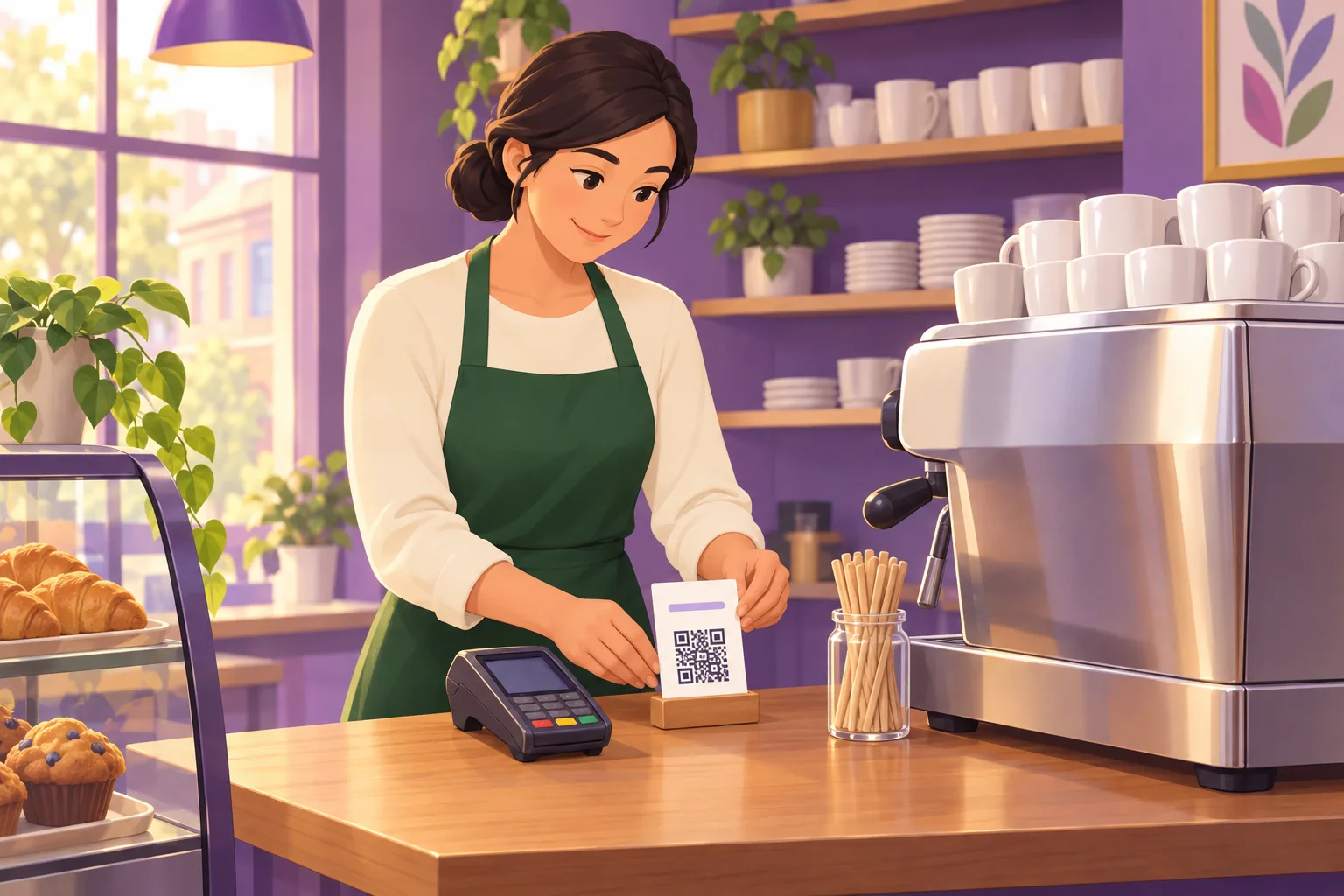
Search for a Google review sign and you get a wall of acrylic stands, NFC plates, and Etsy templates, most of them priced before anyone has told you what the sign should say or whether the tap chip inside it will work on your customers' phones. The sign is the easy part. What is printed on it, and what the code points to, decides whether it brings in reviews or quietly brings in nothing.
Quick answer
A Google review sign needs four things: a short question, one instruction, your business name, and a QR code that opens your Google review page. Leave off star counts, staff names, and offers, because Google's Maps policy bans asking for "specific content" and bans incentives outright. Pick the format by where the goodbye happens: a 4 by 6 counter card at the register, a table tent that arrives with the check, a sticker on the mirror, a one-inch code on the receipt. An NFC tap chip is a bonus on top of the printed code, never a substitute, since phones only read tags while unlocked and in use. Google provides the code itself free from your Business Profile, and a free generator will lay it out print-ready in every one of those formats.
What a Google Review Sign Actually Does
Google's help page on the subject, "Create a Google link or QR code to request reviews", is short and worth reading in full. It tells you to "Print and display the QR code in your store," "Include it on your receipts," "Include it in thank you emails," and "Add it at the end of a chat interaction."
The code it gives you opens the review form for your profile with the business already selected. The customer signs in to their Google account, picks a rating, writes what they want, and posts. No search, no scrolling past competitors, no wondering whether they found the right location.
To get Google's version, open your Business Profile in a computer browser, select Read Reviews, then Get more reviews, and right-click the QR code to save it. Google adds one caveat: "Currently, reviews QR codes can only be generated on a computer browser, not on mobile devices." The complete guide to the Google review QR code covers making a branded version that still scans and the five reasons printed codes fail.
A sign is that code plus the words around it. Everything that follows is about those words, the surface they sit on, and the link behind the code.
What to Print on It
A review sign is read in about two seconds, usually by someone with a bag in one hand and a phone in the other. It cannot afford a paragraph.
Four elements, in this order from the top:
- A question or an invitation, under about six words. "How did we do?" "Enjoyed your visit?" "Leave us a review."
- One instruction that names the action and the platform. "Scan to leave us a Google review."
- Your business name, so the customer knows the code is yours and not a payment terminal.
- The code, as large as the format allows.
That is the whole sign. The headline presets in our free review sign generator are exactly these kinds of lines, and it caps the headline at 34 characters for a reason: longer lines shrink the code to make room.

Lines that should not be on the sign
Google's Maps policy, under Rating Manipulation, says: "When soliciting reviews, merchants should not require or pressure users to leave ratings or write reviews while on the premises, nor should they request that specific content be included." Its examples of specific content include "content that identifies a staff member." The page also lists what is allowed: "Solicit or encourage the posting of content that does represent a genuine experience, without offering incentives to do so or attempting to influence the rating or the contents of the review."
That sentence rules out most of the clever copy you see on sign templates:
| Printed on the sign | The problem | Print this instead |
|---|---|---|
| "Leave us a 5-star review" | Asks for a rating, which is "attempting to influence the rating" | "Leave us a review" |
| "Mention your stylist by name" | Asks for content that identifies a staff member | Nothing. Customers mention staff on their own. |
| "Scan for 10% off your next visit" | An incentive, "strictly prohibited" on Google's own QR help page | Nothing. The ask is the whole ask. |
| "Tell us about our amazing food and service" | Steers the contents of the review | "Tell us what you think" |
| "Happy? Scan here. Not happy? Talk to us." | Routes customers by sentiment, which is review gating | One code, the same for everyone |
One of the top-ranked print-on-demand listings for this search describes itself as inviting clients "to leave a quick 5-star review with just one scan." That is a sign you would have to edit before using it. The rules on incentivized reviews and review gating go deeper on the last two rows, including what the FTC adds in the US.
Say what will happen
If your code goes to a feedback page first and then to Google, say so in the instruction. "Scan to leave us a review" is honest for either. "Scan to review us on Google" is only honest if the next screen is Google's. Customers who expected one and got the other tend to stop.
Pick the Format by Where the Goodbye Happens
Our guide to where to put your review QR code ranks the twelve spots that get scanned. The short version: a customer is most willing to review in the few minutes after a visit ends well, so the sign belongs at the exact point where that ending happens. The format follows from the spot.
| Format | Print size | Where it works | Code width | What it costs |
|---|---|---|---|---|
| Counter card | 4" × 6" | Beside the card reader, the front desk, the service counter | 1.5 to 2 in | Cardstock, or about $8 to $13 printed |
| Table tent | Letter, folded | Arrives with the check or dessert, not at the start of the meal | 2 to 2.5 in | Cardstock, or about $8 to $13 printed |
| Wall poster | 8.5" × 11" | Inside the exit door at eye level, the waiting room, facing the way out | 4 to 6 in | Paper, or a few dollars laminated |
| Business card | 3.5" × 2" | Handed over with the keys, dropped in the bag, tucked in the bill folder | 1 in minimum | About $85 per 1,000 printed |
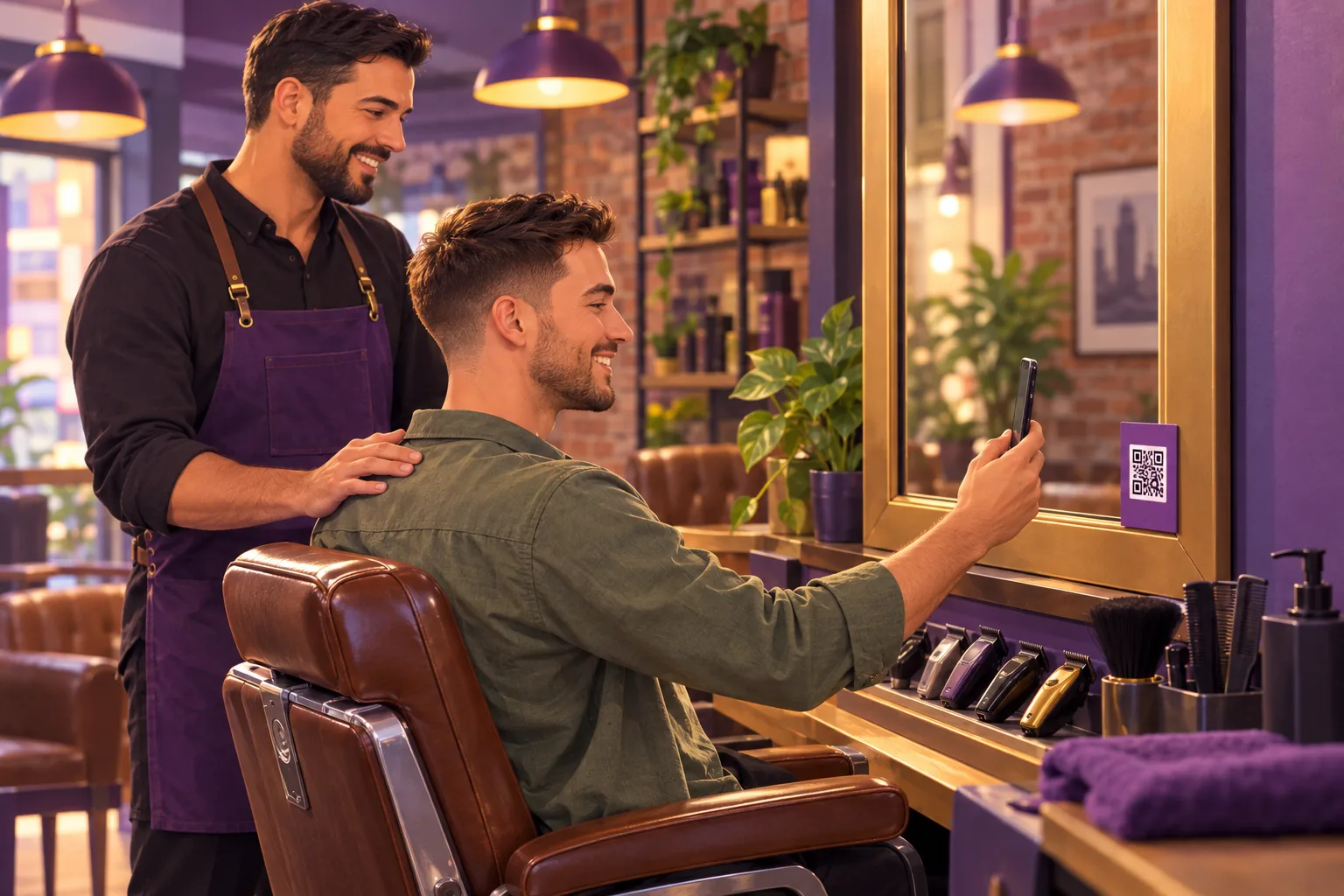
| Square sticker | 3" × 3" | Mirror corner, window on the inside, packaging, to-go bags | 1.5 in | Sticker sheets at home, or a few cents each printed |
| Die-cut shaped sticker | 3" | Anywhere a plain square looks out of place | 1.5 in | Printed, varies by shop |
| Acrylic stand | about 4" × 3" to 6" × 4.5" | Counter or host stand, where it survives spills | 1.5 to 2 in | About $13 to $37, more with an NFC chip |
| Receipt footer | 1 in square | Every printed receipt | 1 in minimum | Nothing |
The printed prices come from the listings that ranked for this search on October 30, 2026: a print-on-demand tabletop sign at $8.15 and another at $12.78, a custom acrylic counter sign at $13.02, an NFC card with a stand at $37, and 1,000 printed review cards at $84.95. They move, but the shape of the market does not: the code is free, paper is nearly free, and you pay for the material and the chip.
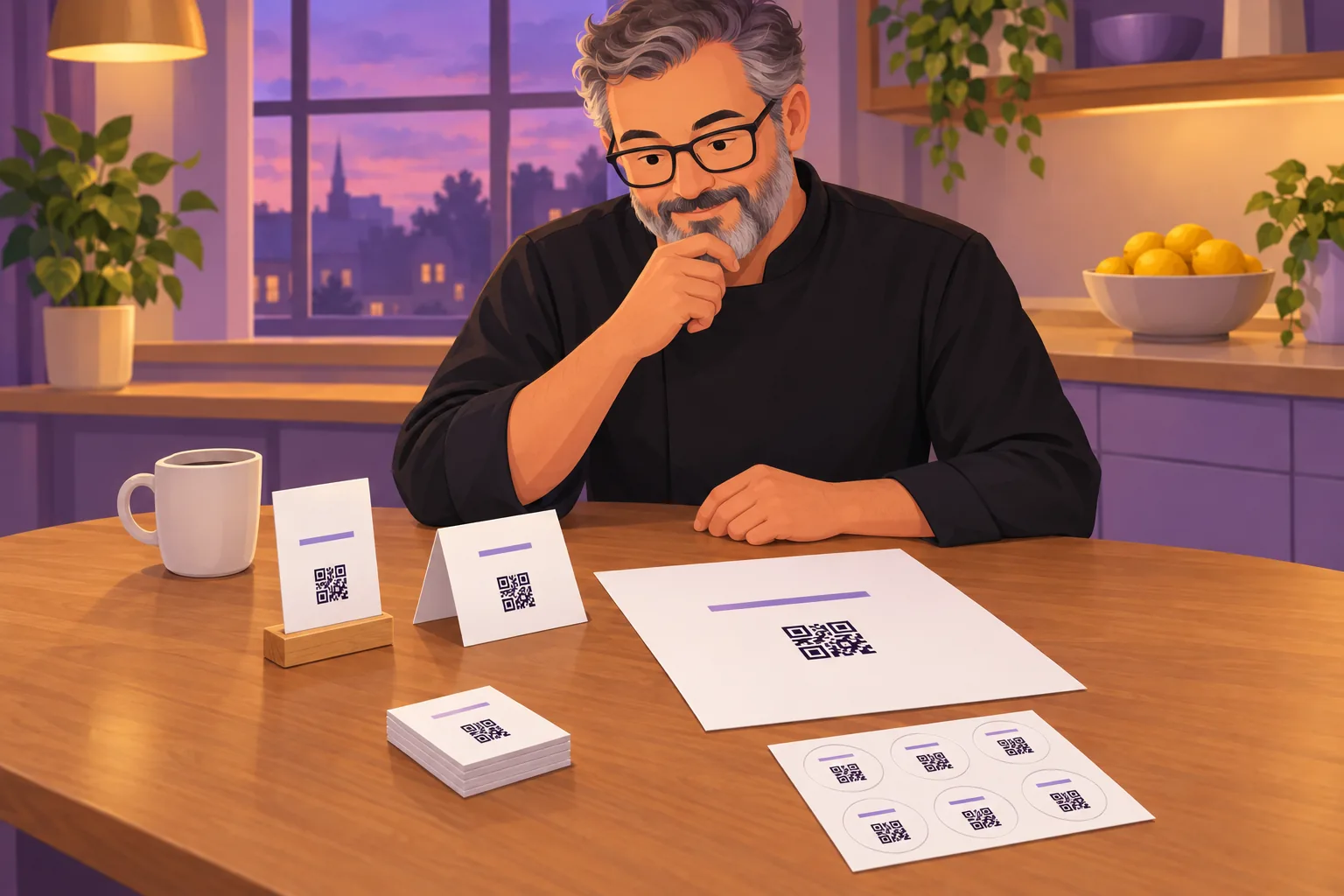
Every one of the first six formats is a free download from the review QR code generator, laid out at 300 DPI so the printed size is exact, and every design is decode-checked before the file leaves, because a code that scans on screen and fails on paper is the most common way a sign dies.
The receipt is the format most owners forget
Google names receipts first on its list, and a receipt is the only format that goes home with the customer. A one-inch code at the bottom, with a single line above it, catches everyone who meant to review later. Thermal printers blur small codes, so print one real receipt and scan it before you roll it out.
Print a review sign in the right format
Counter card, table tent, poster, business card, sticker, or a die-cut sticker shaped like your business. Pick a headline, drop in your Google review link, and download the 300 DPI file.
Make My Review SignNFC Tap Versus QR Code
Most of the signs sold for this search now carry an NFC chip, and the pitch is that a tap beats a scan. Sometimes it does. The phone documentation explains when it does not.
Apple's developer documentation for background tag reading says "iPhone XS and later support background tag reading," and that "the system reads tags in the background only when the user's iPhone is in use." The tap does not open the page. "The system displays a pop-up notification each time it reads a new tag," and the customer has to press it.
If the phone is locked, "the system prompts the user to unlock the phone." Reading is unavailable when "Apple Pay Wallet is in use" or "Airplane mode is enabled," and the Wallet case matters at a counter, because the moment after paying with the phone is the moment the sign is for.
Android's documentation says devices "are usually looking for NFC tags when the screen is unlocked, unless NFC is disabled in the device's Settings menu." Starting with Android 17, the same page says, scanning a web-link tag "surfaces an 'open link' notification, requiring explicit user interaction."
So a tap requires an unlocked, awake phone held against the plate, followed by a notification tap. A QR code requires a camera pointed at the sign from a foot or two away. The scan works on every phone with a camera, including older iPhones and budget Android models with no NFC at all, and it works from a seated position at a table, which a tap plate never does.
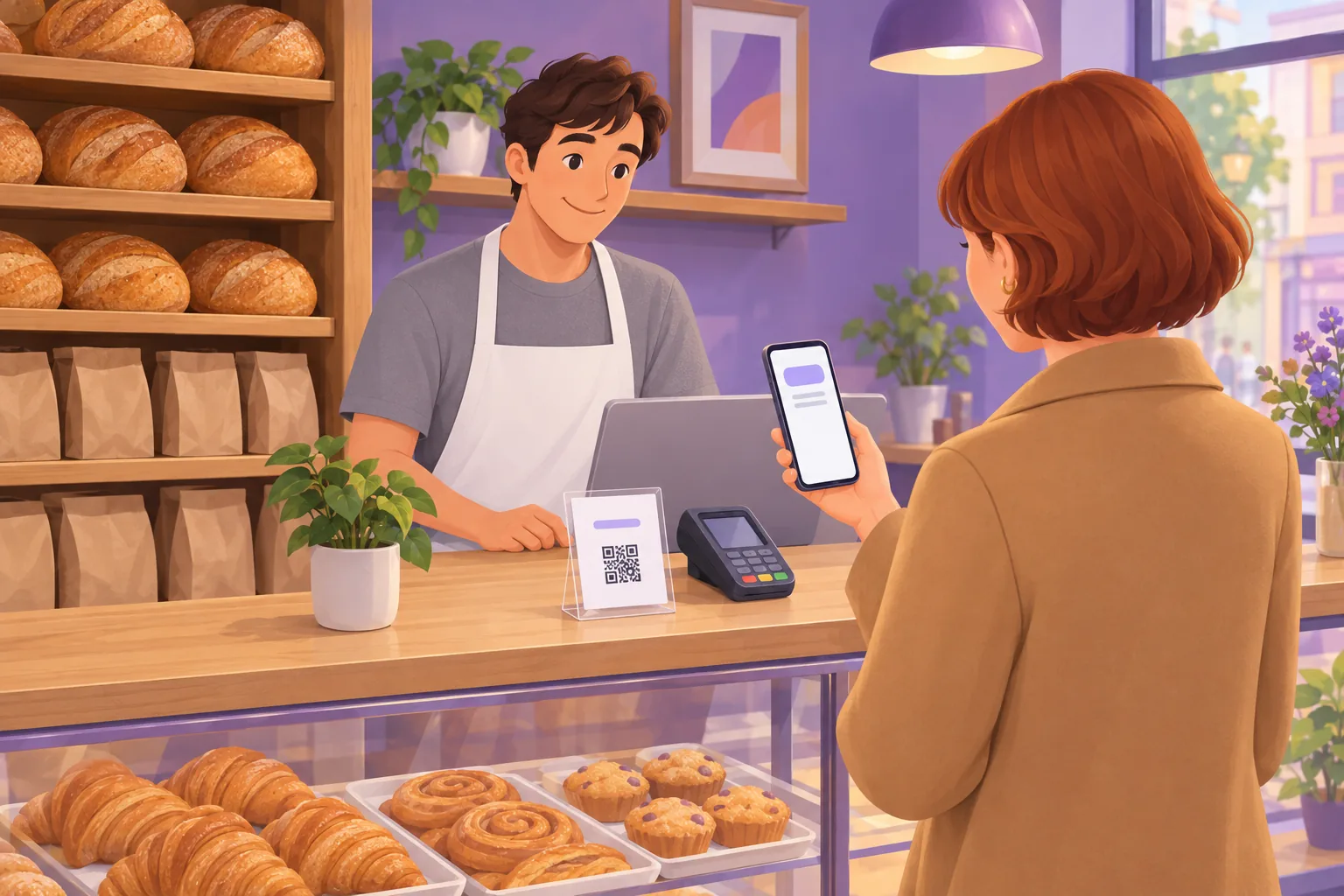
The practical rule: a tap chip is fine as an extra, as long as the printed code is still on the sign and still large enough. A sign that is NFC only has thrown away the customers who cannot or do not know how to tap.
Make sure the chip holds your real link
Many NFC products do not store your Google review URL on the chip. They store the vendor's link, which redirects to Google and records the scan for the vendor's analytics. When that vendor changes its service, so does your sign.
A locked thread on Google's Business Profile Help Community from May 2025 shows how that ends: an owner bought five review cards, "they were initially set up and linking directly to my Google review page," and then "the review link in all the cards isn't working when customer scans the card."
A Gold Product Expert replied that "this is not likely an issue on Google's side of things" and that "quite often, the link printed on those is not a 'pure' link to your Google Business Profile and typically includes a tracking link or redirect added via the vendor." His advice: "have your own cards printed. They'll be significantly less costly and you will own and control your own data."
Before you buy a tap sign, ask the seller whether the chip can be written with your own URL. Before you print anything, open the link the code encodes in a private browser window and confirm it lands on the review form for your location.
What Our Scan Data Shows
Every business connected to ReplyOnTheFly gets a review page it can print a code for, and since August 2026 we tag visits that arrive from a printed code separately from visits that arrive from texted or emailed links. The numbers are small, so treat them as a direction rather than a benchmark.
Across customer accounts (our own test businesses excluded), 52 visits have come from a printed code, and 23 of them went on to tap through to Google, a rate of 44%. Visits from every other route, 183 of them since March, tapped through at 15%, or 28 visits.
The gap is not surprising once you think about who scans a sign. A person who takes out a phone and points it at a card on the counter has already decided to review. A person who taps a link in a text two days later is still deciding. The sign catches the committed customer at the one moment the decision is cheap.
The other number worth knowing is how few signs exist. Of 2,656 review links sitting in customer accounts, 37 had ever been opened by a customer and 7 had ever been scanned from print. The link is created automatically. The sign is the step owners skip, and it is the only step that puts the link in front of a customer who is standing in the shop.
The One Rule a Sign Can Break
Asking is allowed. Google's "Tips to get more reviews" page says: "To leave reviews, you can ask customers to visit a Google link or scan a QR code." The same page asks businesses to "Value all reviews," because "A mix of positive and negative feedback often feels more trustworthy."
The incentive rule is absolute. The QR help page says: "Offering incentives, like free or discounted goods or services, to customers in exchange for reviews is considered fake engagement and is strictly prohibited." Nothing goes next to the code that a customer gets for scanning it.
The premises rule is the one signage can trip. The policy line quoted above says merchants "should not require or pressure users to leave ratings or write reviews while on the premises." A card on the counter does not pressure anyone; it waits. The pressure comes from a person: a server who stands over the table until the review is posted, a receptionist who hands over a tablet and watches, a technician who says the review has to be done before the invoice closes.
Our guide to training staff to ask for reviews has the one-line ask and the gesture at the card that stays on the right side of that sentence. The April 2026 policy update covers the staff quota and staff name clauses that sit directly under it.
Finally, the sign points the same place for everyone. A "how was your visit?" screen that sends four and five stars to Google and the rest to a private form is review gating, and it is banned by name. If you want private feedback, collect it on the same page you send everyone to, and show the Google button on every rating. That is how our review pages are built, and it is why "the sign goes through a feedback page first" and "the sign complies with Google's policy" can both be true.
Before You Print Five Hundred
A short checklist, in the order that catches the most mistakes:
- Open the encoded link in a private window. It should land on the review form for the right location, signed out. If it lands on a vendor page, a short-link page, or the wrong location, fix the link before anything else.
- Print one and scan it from the customer's side. Stand where a customer stands, at the distance they would be, and scan with an older phone. If it needs two tries, make the code bigger.
- Check the finish. Matte beats gloss on every format. A laminated card under a ceiling light throws a white streak across the code.
- Read the words against the table above. No star count, no staff name, no offer, no steering.
- Put a person beside it. A sign that staff point at while they ask outperforms the same sign left to work alone. Give the team one line and the gesture.
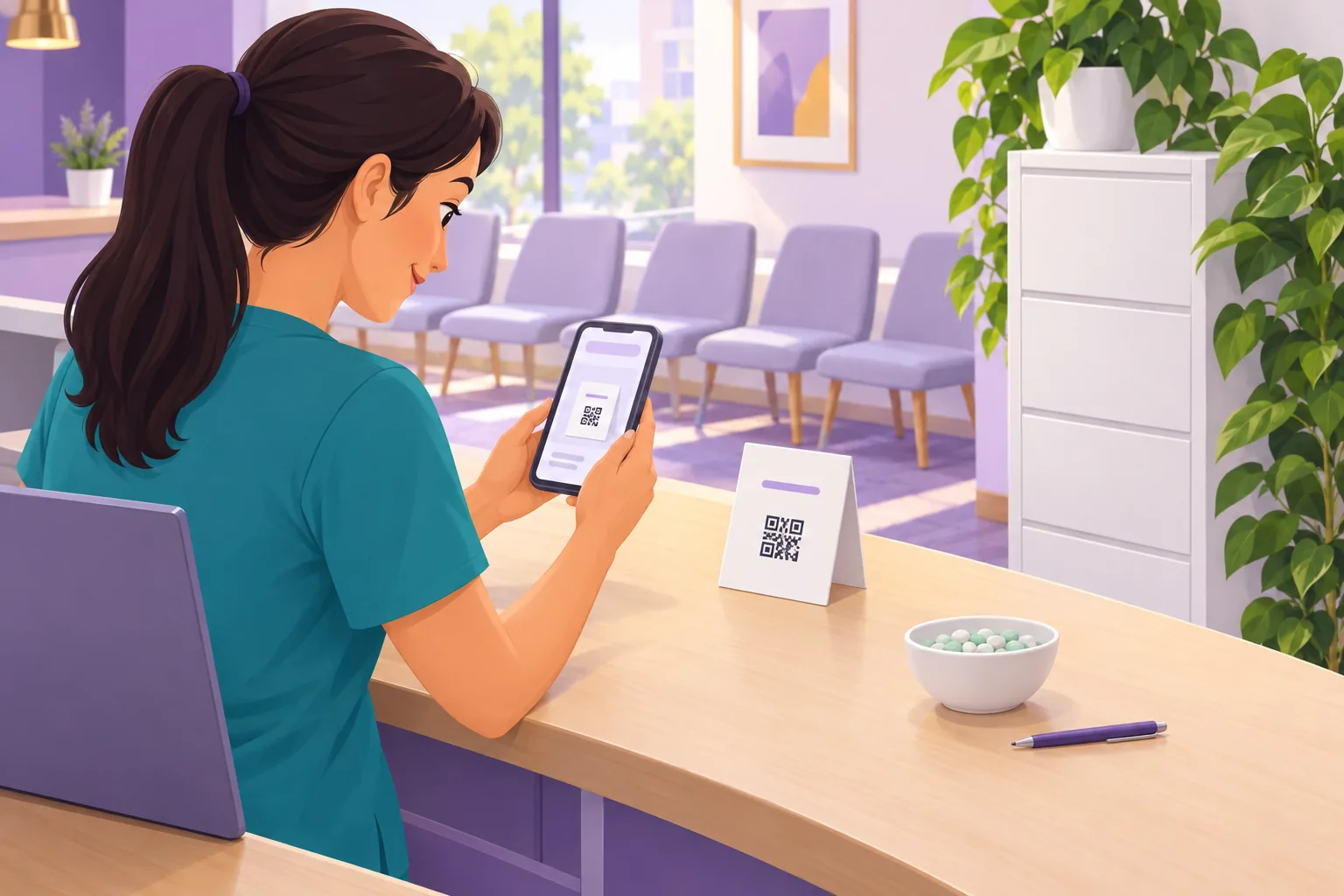
Pair the sign with a ready-to-send review link that staff can text to anyone already walking out the door. The sign catches customers in the moment. The text catches the ones who meant to.
Frequently Asked Questions
What should a Google review sign say?
One short question, one instruction, your business name, and the code. Something like: How did we do? Scan to leave us a Google review. Do not mention a star count, a staff member's name, a discount, or anything else the customer should put in the review. Google's Maps policy says merchants may not request that specific content be included and may not try to influence the rating or the contents of the review, so the safest sign asks for a review and stops there.
Does Google provide a review sign?
Google provides the QR code, not the sign. From your Business Profile on a computer, select Read Reviews, then Get more reviews, and you can copy the review link or right-click the QR code to save it. Google's help page says the code can currently only be generated in a computer browser, not on mobile. You then put that code on a card, tent, poster, or sticker yourself, or use a free generator that lays it out in a print-ready format.
Are NFC Google review cards worth it?
They are a convenience on top of a QR code, not a replacement for one. Apple's documentation says iPhone XS and later read NFC tags in the background, but only while the phone is in use and unlocked, and the tap produces a notification the customer still has to press. Android phones generally look for tags when the screen is unlocked, and Android 17 adds an open-link notification that needs a tap. A QR code works from a foot away on any phone with a camera. If you buy an NFC sign, make sure it also carries a printed QR code and that the chip holds your real Google review link rather than a vendor redirect.
Is it against Google's policy to have a review sign?
No. Google's own help page for the review link and QR code tells businesses to print and display the QR code in your store and to include it on receipts. The policy problems come from what the sign says and how staff use it. Google prohibits incentives of any kind for a review, says merchants should not require or pressure customers to leave ratings or write reviews while on the premises, and bans asking for specific content such as a staff member's name. A sign that sits on the counter and asks for an honest review breaks none of those.
How big does the QR code on a review sign need to be?
About one tenth of the distance it will be scanned from. A code on a counter card or table tent is scanned from one to two feet, so it should be 1.5 to 2.5 inches wide. A poster read from across a waiting room needs 4 to 6 inches. On a thermal receipt, keep the code at least one inch wide and test a printed receipt, not a screen preview, because receipt printers blur small codes.
How much does a Google review sign cost?
Anywhere from nothing to about forty dollars per sign. A print-at-home counter card or table tent on cardstock costs only the paper. Printed tabletop signs from print-on-demand shops were listed between about eight and thirteen dollars on October 30, 2026, acrylic stands with an NFC chip and QR code around thirty-seven dollars, and a run of a thousand printed review cards about eighty-five dollars. The code itself is free from Google.
Conclusion
A Google review sign is four lines and a code, placed where the visit ends well. The words are the part that can get a profile in trouble, so keep them to a question, an instruction, and your name, and leave off stars, staff, and offers. The format follows the spot: a counter card at the register, a tent with the check, a sticker on the mirror, an inch of code on every receipt. Keep the printed code on any sign that also taps, and make sure whatever is on the chip or in the code is your real Google link.
Then expect the reviews to arrive, because the sign only does half the job. Each one deserves a reply, and that is where most businesses fall behind. ReplyOnTheFly watches your Google profile, emails you a draft reply written in your voice, and posts it to Google with one tap. The free plan covers most single-location businesses, and you can start free the same afternoon you put the card on the counter. For everything else that brings reviews in, from the first ask to the follow-up text, see the full guide to getting more Google reviews.
Put the sign on the counter, then let the replies write themselves
ReplyOnTheFly emails you an AI-drafted reply the moment a new review lands. One tap to post it to Google, no login needed. Free forever for one location.
Start Free - No Credit Card Required- Unlimited AI drafts
- 5 free one-click posts/month
- Works from your email inbox
Written by ReplyOnTheFly Team
Content Team
Free toolNo signup
Print a review QR code
Counter cards, table tents, and stickers that open your review page. 300 DPI, ready to print.
Make my QR codeOr create a free account to automate replies
Related Articles
Where to Put Your Review QR Code: 12 Spots That Get Scanned
The 12 places a Google review QR code actually gets scanned, matched to your business type, with the size each spot needs and five spots to avoid.

Google Review QR Code: The Complete Guide (2026)
How to get Google's own review QR code, make a branded one that still scans, and test it before you print. Plus the five reasons printed codes fail.

How to Train Staff to Ask for Reviews Without It Being Awkward
How to train staff to ask customers for reviews in person without it feeling awkward: one simple line, who should ask, when, and the QR code that seals it.