Google Review QR Code: The Complete Guide (2026)
How to get Google's own review QR code, make a branded one that still scans, and test it before you print. Plus the five reasons printed codes fail.
ReplyOnTheFly Team
Content Team

A review QR code turns "would you mind leaving us a review?" into something a customer can do in the ten seconds before they walk out the door. No searching, no typing your business name, no scrolling to find the right listing.
That only works if the code scans. A surprising number of the ones taped to counters and printed on receipts do not, and the business never finds out, because a customer who cannot scan just shrugs and leaves.
Quick answer
Google gives you a plain review QR code for free: open your Business Profile on a computer, select Read Reviews, then Get more reviews, and save the image. For a branded version, paste the same review link into a generator that keeps the corner squares clear, darkens your colour enough to decode, and leaves a blank margin, then export at 300 DPI. Before printing any quantity, scan a proof up close, at arm's length, and from across the room with two phones.
Table of Contents
- What Happens When a Customer Scans It
- How to Get Google's Own Review QR Code
- How to Make a Branded Review QR Code
- Why Printed QR Codes Fail to Scan
- How Big Should the Code Be?
- Static or Dynamic? Pick Static
- Test It Before You Print 500
- Where It Goes and How Staff Use It
- Staying Inside Google's Rules
- Frequently Asked Questions
- Conclusion
What Happens When a Customer Scans It
It helps to picture the customer's side first, because every design decision comes back to it. They open their phone camera, point it at the square, and a small notification appears. They tap it.
The code encodes your review link, which looks like https://search.google.com/local/writereview?placeid=..., and that link opens Google's review form with your business already selected. The customer picks a star rating, types a sentence or two, and posts.
There is one hidden step. Google requires reviewers to be signed in to a Google account, so a customer who is not signed in on that phone gets a sign-in prompt first. Most people are, through Gmail or Android, but it is the reason some willing customers stall at the counter. If you do not have your review link yet, the Google review link and QR code guide walks through the three places to find it.

How to Get Google's Own Review QR Code
Google now generates the code for you, and its help centre page "Create a Google link or QR code to request reviews" gives the steps. Quoted exactly:
- "Go to your Business Profile"
- "Select Read Reviews and then Get more reviews"
- "You can share the link or QR code directly or use the other options"
From that panel you can copy the link, or right-click the QR code and choose "Save image as..." to download it. One limit worth knowing before you reach for your phone: the same page states, "Currently, reviews QR codes can only be generated on a computer browser, not on mobile devices."
What you get is a standard black-and-white code with no branding, no call to action, and no print layout. It scans fine, and for a receipt or an email signature it is all you need. For anything a customer sees on a wall or a counter, a plain square with no words around it gets ignored, because nobody scans a code without knowing what it does.
How to Make a Branded Review QR Code
A branded code adds three things the plain one lacks: your colour, a logo so people trust it, and the printed words that tell them why to scan. It still encodes the exact same Google link, so nothing about the review itself changes.
You can print a free review QR code in about a minute:
- Search for your business by name and city. The generator fills in your Google review link so you never paste the wrong one.
- Pick the format you will actually print: counter card, fold-ready table tent, poster, business card, square sticker, or a die-cut sticker shaped like a coffee cup, a pizza slice, or your own logo.
- Choose your accent colour or enter an exact brand hex. If the colour is too light to decode, the generator darkens it until it scans rather than shipping a pretty code that fails.
- Download a true 300 DPI PNG, a print-shop PDF, or the bare code as PNG or SVG.
Every download is scan-tested at three effective sizes before it is released, and a failure blocks the download instead of handing you a code that might not work on the wall. That last part matters more than any design option, for reasons the next section explains.

The link is the part that must be right
Whatever you print, scan the finished design and confirm it opens your review form, not your Maps listing or your website. A code that lands on your homepage adds two taps and loses most of the people who would have reviewed you.
Why Printed QR Codes Fail to Scan
QR codes are designed to survive abuse. They carry error correction that can rebuild the data when part of the code is missing, and at the highest level, which is what a good generator uses, roughly 30 percent of the code can be damaged and it still reads. So when a printed review code fails, it is almost always one of five specific mistakes.
1. The colour is too light. Phone cameras need strong contrast between the dark modules and the background. A brand orange or a pastel teal can look perfectly readable to you and be invisible to the decoder. In our own print testing, a logo colour sampled at a luminance of 139 decoded at 5 inches and at 1 inch but failed at 2, 3, and 4 inches, which is the signature of marginal contrast: it does not fail cleanly, it fails at random. Darkening the colour to a luminance of 100 fixed every case.
2. There is no quiet zone. The code needs a blank margin on all four sides, four modules wide in the QR specification, so the camera can find its edges. Designers trim it to fit a layout, or a border runs right up against the code, and scanning becomes hit-and-miss.
3. A logo covers a finder pattern. The three large squares in the corners are how the phone locates and orients the code. A logo dropped over one of them defeats the error correction because the camera never gets far enough to use it. Logos belong in the centre, and small.
4. It is too small for where it hangs. A code that scans fine from a business card in your hand will not scan from a poster by the door, because at that distance each module lands on too few camera pixels. Size follows distance, which is the next section.
5. Glossy lamination or a curved surface. Laminate under a ceiling light throws a white glare across the code. A sticker wrapped around a coffee cup or a pillar bends the grid. Use matte finishes and flat surfaces, or a large enough code that a partial glare falls within what error correction can rebuild.

How Big Should the Code Be?
The rule of thumb printers use is that a QR code should be about one tenth of the distance it will be scanned from. A code scanned from 12 inches away needs to be about 1.2 inches wide. One meant to be scanned from across a waiting room at 10 feet needs to be roughly a foot across.
| Where it lives | Typical scan distance | Code width to aim for |
|---|---|---|
| Business card, receipt | 6 to 10 inches | 1 inch minimum |
| Counter card, table tent | 12 to 18 inches | 1.5 to 2 inches |
| Poster by the exit | 3 to 5 feet | 4 to 6 inches |
| Window or wall sign | 6 to 10 feet | 8 to 12 inches |
Two details change these numbers. A code with a logo in it needs more room than a plain one: in our measurements a plain high-contrast code is reliable down to 0.5 inches, a code with a logo in the centre needs 0.8 inches, and a design where the whole square becomes your logo needs at least 1.5 inches. And a longer link produces a denser code with smaller modules, so shortening the link with a redirect does not help, because the redirect creates the problem described next.
Static or Dynamic? Pick Static
A static QR code encodes your Google review link directly. A dynamic one encodes a short link owned by the QR service, which then redirects to your review page. Dynamic codes are sold on two benefits: you can change the destination later and you get scan counts.
For a review code, neither is worth the trade. Your Google review link does not change as long as your profile exists, so there is nothing to edit. And the redirect means every sign, card, and sticker you have ever printed depends on that vendor's subscription staying active. When it lapses, the codes on your wall start opening an error page, and you will not know until a customer tells you.
Static codes have no expiry and no middleman. If you want to know whether the code is working, watch your review count in the weeks after you put it out, which is the number you cared about anyway.
Test It Before You Print 500
A screen preview tells you nothing about how the code behaves on paper under your lighting. Print one copy on an ordinary office printer and run this check, which takes about five minutes:
- Scan it at three distances. Up close as if reading a card, at arm's length as if standing at a counter, and from across the room. Codes with marginal contrast pass at one distance and fail at another, so one successful scan proves nothing.
- Use two different phones. An older Android and a recent iPhone catch different weaknesses. Ask a staff member for theirs.
- Try it in dim light and then under the brightest light in the room, where glare shows up.
- Confirm the destination every time. It must open the review form with your business name on it. If it opens anything else, the link in the code is wrong.
- Only then order the real run. If a design fails any step, fix the colour, margin, or size and print another proof. Cheap paper now beats a box of unusable table tents later.
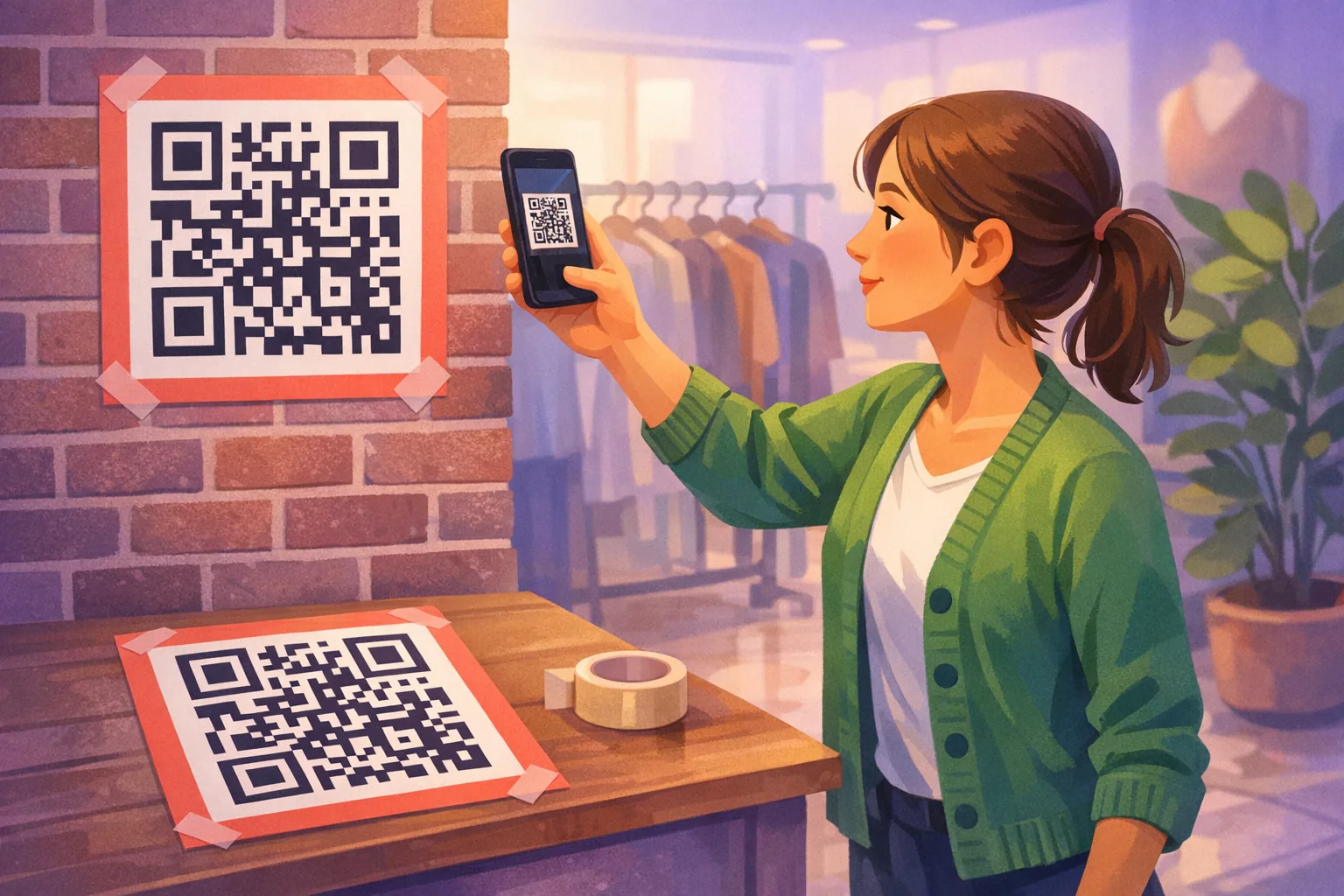
Print a review QR code that's already been scan-tested
Search your business, pick a counter card, table tent, poster, or shaped sticker, and download a 300 DPI file. Every design is decoded at three sizes before you can download it.
Make My QR CodeWhere It Goes and How Staff Use It
The code belongs where the goodbye happens: the register, the table where the bill arrives, the salon mirror, the service desk where keys are handed back. That is the moment a happy customer is most willing, and the moment passes within hours. The guide to where to put your review QR code ranks the 12 placements that get scanned by business type and lists the five to avoid, the guide to getting more Google reviews covers the wider set of tactics, and the best time to ask for a review by business type. The Google review sign guide covers the words that go around the code, the print formats, and the NFC tap plates sold alongside them.
A visible code works far better when a person points at it. Give staff one short line, something like "If you have a minute today, a quick Google review really helps us," and have them gesture at the card as they say it. The post on training staff to ask for reviews has the full script and the mistakes to avoid.
For customers who want to do it later from the couch, pair the code with a ready-to-send review link that staff can text in a few seconds. The code catches people in the moment; the link catches everyone who meant to.
Staying Inside Google's Rules
Google is explicit that asking is fine. Its "Tips to get more reviews" page tells businesses that "To leave reviews, you can ask customers to visit a Google link or scan a QR code," and it hands you the code itself.
What crosses the line is paying for the ask. The QR code help page states: "Offering incentives, like free or discounted goods or services, to customers in exchange for reviews is considered fake engagement and is strictly prohibited." So no "scan for 10% off," no free dessert for a five-star, no raffle entry for a review.
The second line is quieter but just as real. Showing the code only to customers you expect to be happy, or filtering people through a "how was it?" screen before they reach Google, is review gating and violates the policy too. Put the code out for everyone. If a visit went wrong, fix the problem in person rather than asking, and the code stays honest.
Once the reviews arrive, each one deserves a reply, and that is where most businesses fall behind. ReplyOnTheFly watches your profile, emails you a draft reply written in your voice, and posts it to Google with one tap, with a free plan that covers most single-location businesses. You can start free and pair it with the code on your counter.
Frequently Asked Questions
How do I find my Google review QR code?
Google generates one for you. On a computer, open your Business Profile, select Read Reviews, then Get more reviews. The panel shows your review link next to a QR code you can save by right-clicking it. Google notes the QR code is only available in a computer browser, not on mobile, so you cannot grab it from the phone app.
How do I make a QR code for Google reviews with my logo?
Paste your Google review link into a QR generator that supports logos, or use one that finds your business by name and fills the link in for you. The safe way to add a logo is in the centre of the code, no wider than about 40 percent of the code and never touching the three large corner squares. Export at 300 DPI and scan a printed proof before you order any quantity.
Do customers need a Google account to scan and leave a review?
Yes. The QR code opens your review form, but Google requires the reviewer to be signed in to a Google account before the star rating and text box will submit. Most people are signed in on their phone already through Gmail or Android. If they are not, Google prompts them to sign in and then returns them to your review page.
Does a Google review QR code expire?
A static QR code that encodes your review link directly never expires, because the link is Google's and stays the same as long as your profile exists. A dynamic QR code from a subscription service points to that vendor's redirect first, so it stops working if the subscription lapses. For a code you are printing on signs and cards, use a static one.
Why does my printed review QR code not scan?
The usual causes are a brand colour that is too light against the background, no blank margin around the code, a logo laid over one of the corner squares, printing it too small for the distance people scan from, and glare from glossy lamination. Print a proof and scan it up close, at arm's length, and from across the room before you commit to a print run.
Is it against Google's rules to ask customers to scan a QR code for a review?
No. Google's own help centre tells businesses they can ask customers to scan a QR code to leave a review and provides the code itself. What Google prohibits is offering incentives such as discounts or free goods in exchange for reviews, which it calls fake engagement, and asking only customers you expect to be positive, which is review gating. Ask everyone, offer nothing for it.
Conclusion
A Google review QR code removes every step between a happy customer and the review form except the one that matters: deciding to write. Google's own code is free and takes a minute to save, and a branded version with a clear call to action gets scanned far more often.
The work is in making sure it scans. Keep the colour dark, the margin blank, the logo out of the corners, and the size matched to the distance. Then print one proof and test it at three distances with two phones before you commit to a box of them.
Do that once, put the code where the goodbye happens, and have staff point at it. The rest is customers doing what they already meant to do.
New Reviews Coming In? Reply to Them From Your Inbox
ReplyOnTheFly emails you an AI-written reply for every new review, in your voice. One tap posts it to Google. Free forever for most single-location businesses.
Start Free - No Credit Card Required- Unlimited AI drafts
- 5 free one-click posts/month
- Works from your email inbox
Written by ReplyOnTheFly Team
Content Team
Free toolNo signup
Print a review QR code
Counter cards, table tents, and stickers that open your review page. 300 DPI, ready to print.
Make my QR codeOr create a free account to automate replies
Related Articles

How to Get More Google Reviews: 15 Proven Strategies (2026)
Learn 15 actionable strategies to get more Google reviews for your business. From QR codes to email campaigns, discover what really works in 2026.

How to Create a Google Review Link & QR Code (2026 Guide)
Step-by-step guide to creating a direct Google review link and QR code for your business. Get more reviews with shareable links customers can use in seconds.

How to Train Staff to Ask for Reviews Without It Being Awkward
How to train staff to ask customers for reviews in person without it feeling awkward: one simple line, who should ask, when, and the QR code that seals it.